

There are different ways to access the code-signing certificate using Signtool.
-
The preferred method to do this is directly from the certificate stored with the thumbprint.
-
The second method is by using the key name.
-
The third method is by pointing to a
.cerfile that was created by exporting the certificate.
In this guide, an executable file called MyApplication.exe was created, signed, and time-stamped.
-
Create a PowerShell script file with the name
Sign_Timestamp_Executable.ps1and add the following content into the script file.
#The first method using the certificate hash value
#Get the certHash Value from Step 3 in section 5.3
$certHash = "956FEA6AAE5429B03454347B0994F7CFE50C29CA"
#The second method is name of the key
#Key name generated in section 5.2
$ContainerName = "Authenticode_TestKey"
#The third method is by using an exported certificate path
#Self Signed Certificate name generated in section 5.3
$SelfCertName = "Authenticode Certificate"
$SelfSignedCertificatePath = "C:\Authenticode\Authenticode_Certificate.cer"
# Certificate Services Time Stamp Server
$timestampServer = "http://timestamp.digicert.com”
# File to be Signed
$fileName = "C:\Authenticode\MyApplication.exe"
# signtool path (recommended)
$signtoolPath = "C:\Program Files (x86)\Windows Kits\10\bin\10.0.22621.0\x64\signtool.exe"
&$signtoolPath sign `
  /debug `
  /tr $timestampServer `
  /td sha256 `
  /fd sha256 `
  /a `
  $fileName
-
Launch PowerShell as Administrator and run
Sign_Timestamp_Executable.ps1. Enter the passphrase when prompted.
.\Sign_Timestamp_Executable.ps1
|
›_ PowerShell |
|---|
|
If you are using Smartcard Authentication, the PIN Pad device will prompt to insert the Smartcard and enter the PIN. Then, press the OK button on the PIN Pad.
-
You can verify that your application is now signed by right-clicking on it and selecting Properties. On the Digital Signatures tab (if it exists), you can view the signing certificate and time-stamp.
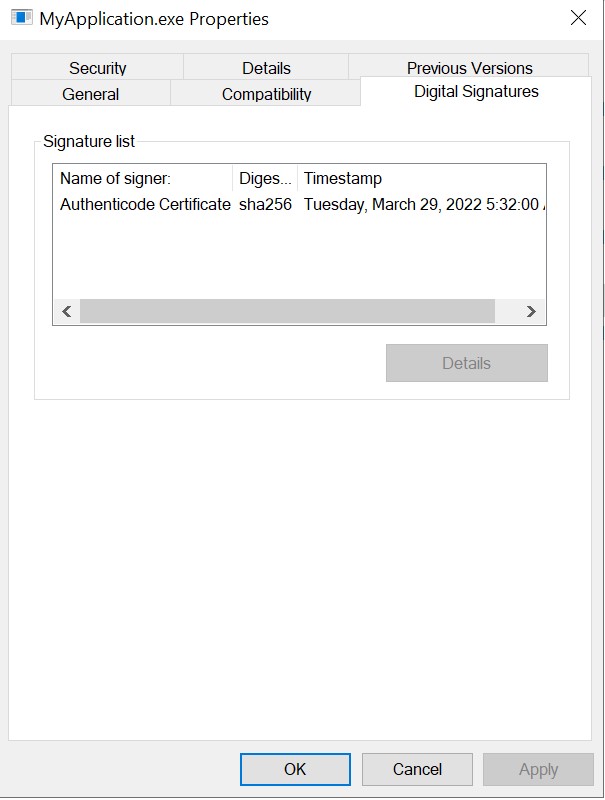
Digital signature details