

-
Click on Server Manager by selecting Start > Server Manager > click Tools and open DNS Manager.
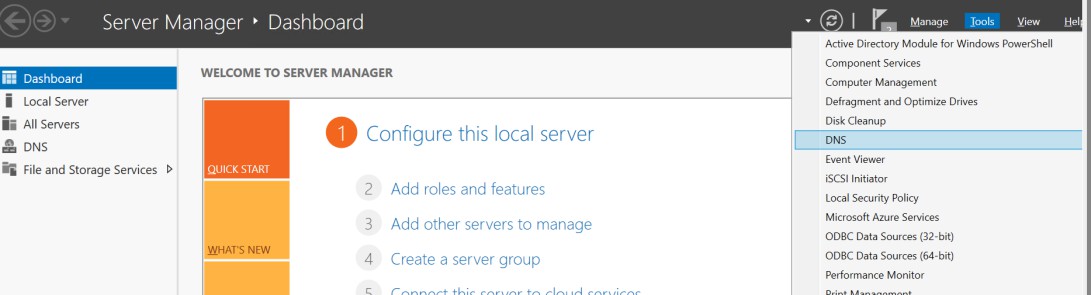
Server Manager
-
In DNS Manager right-click on Reverse Lookup Zone and click on New Zone.
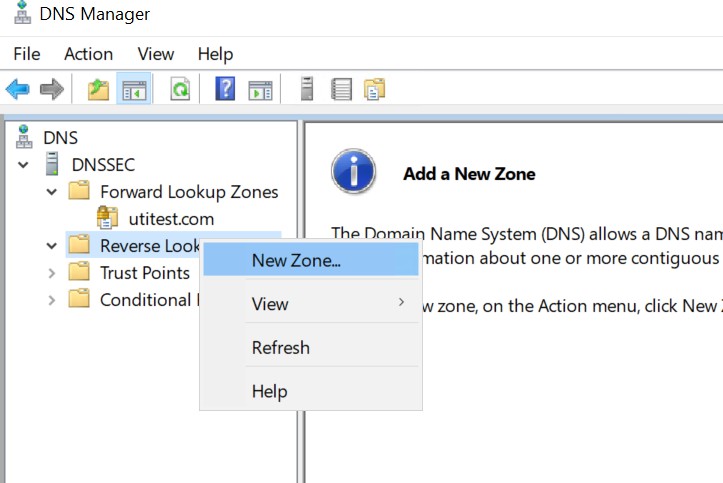
DNS Manager
-
In New Zone Wizard click Next.
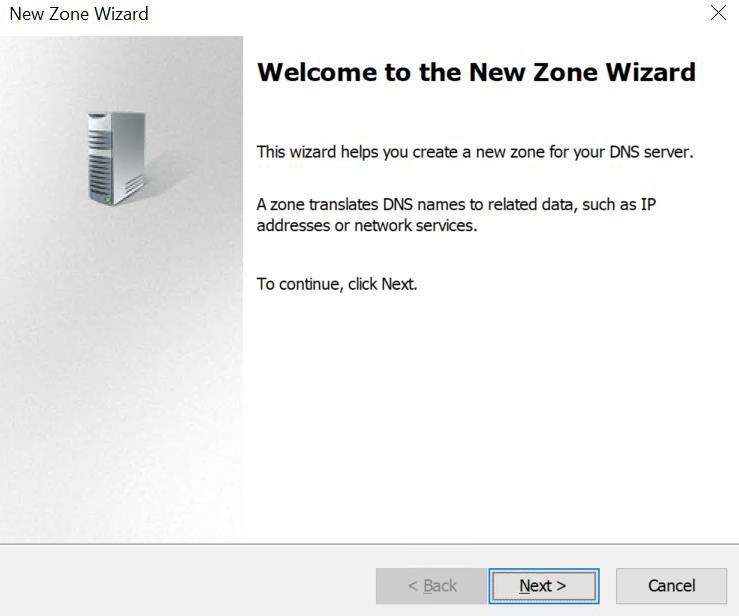
New Zone Wizard
-
Select Zone Type and click Next.
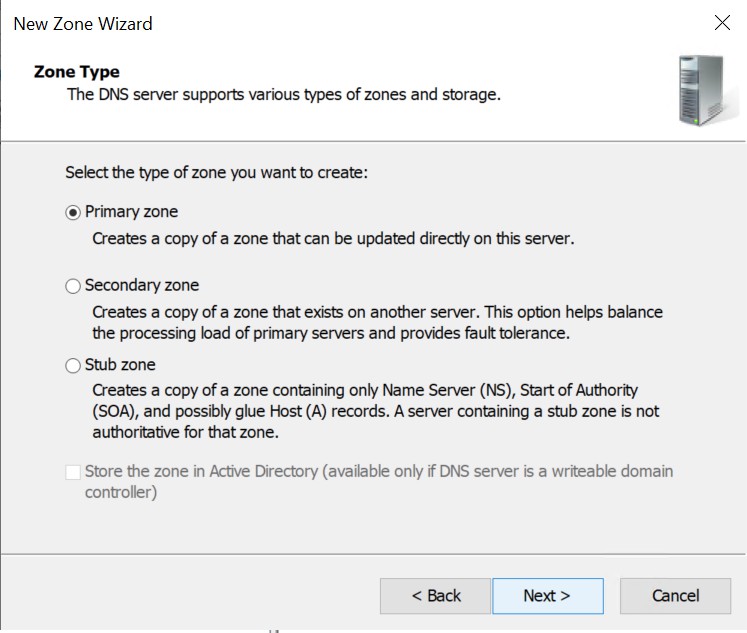
Zone Type
If your system is joined to domain, then you will get the option to select the Active Directory Zone Replication Scope.
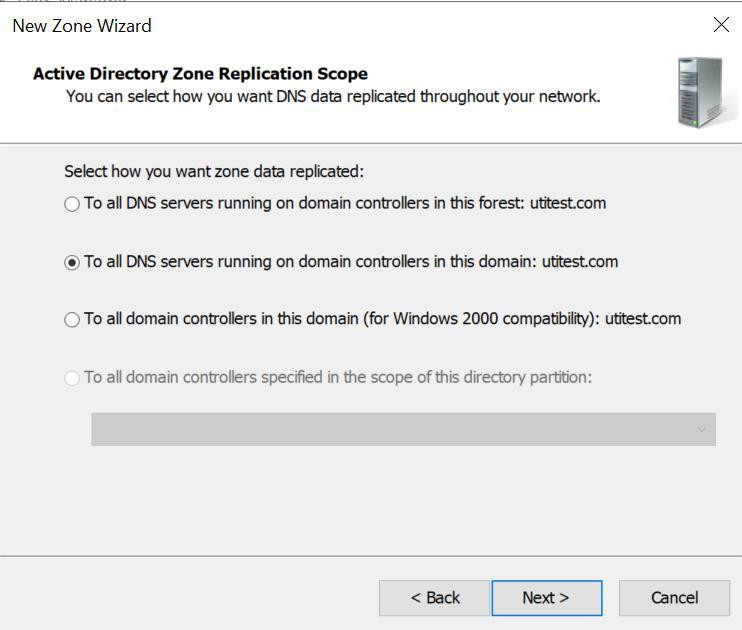
Active Directory Zone Replication Scope
-
Select the Reverse Lookup Zone Name and click Next.
-
Select the IPv4 or IPv6 Reverse Lookup Zone.
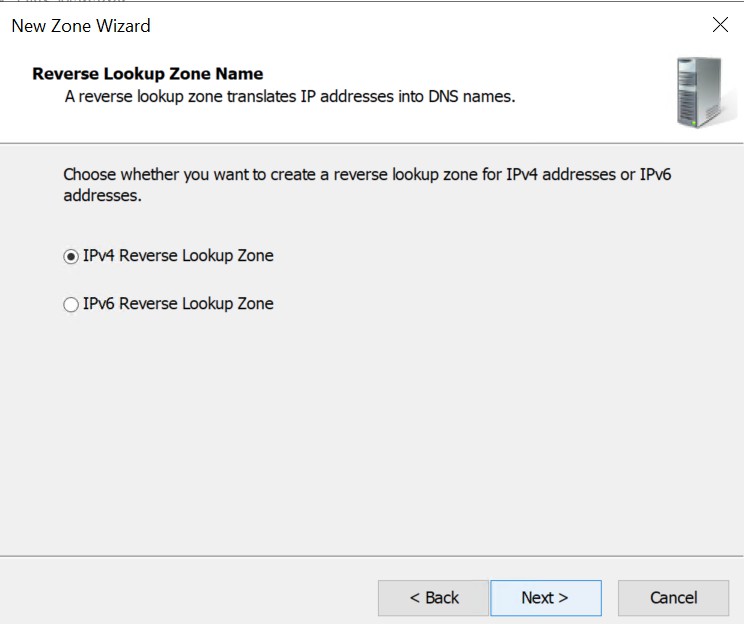
Reverse Lookup Zone Name
-
Provide Network ID and click Next.
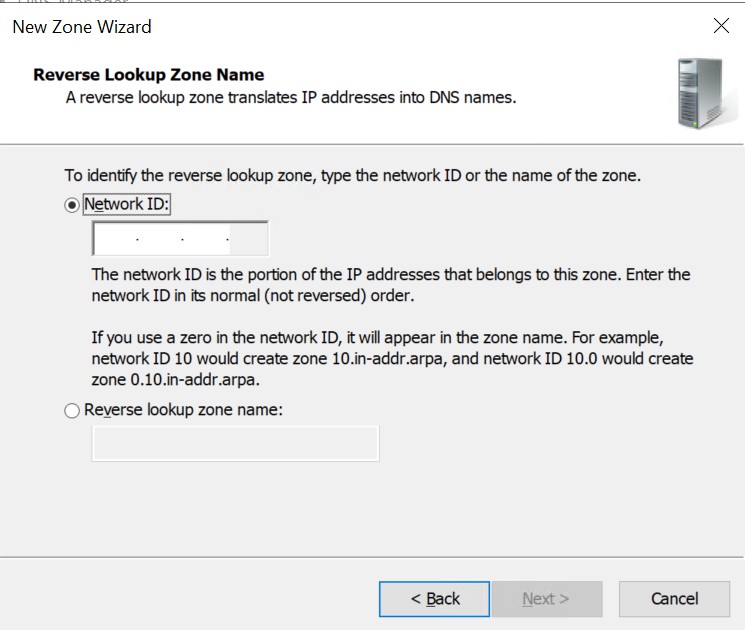
Reverse Lookup Zone Name
-
Select the option to create a new file with this file name and click Next.
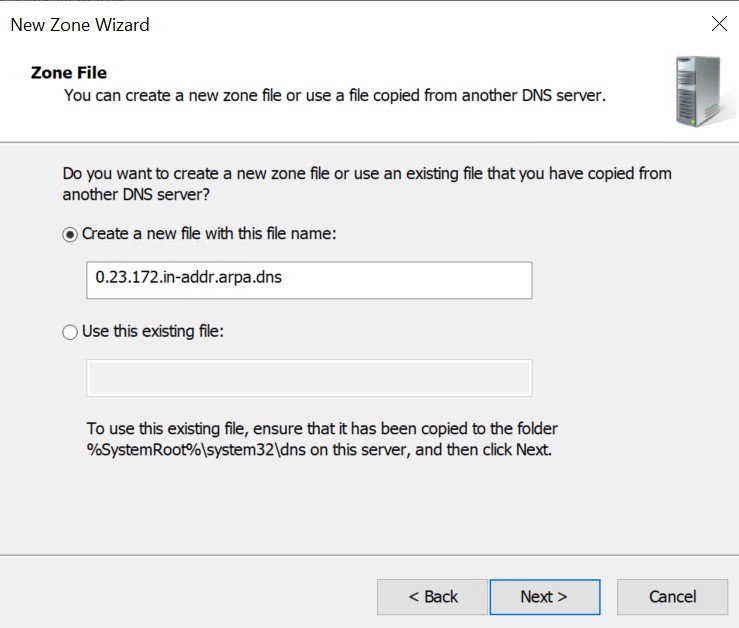
Zone File
-
Select a Dynamic Update type and click Next.
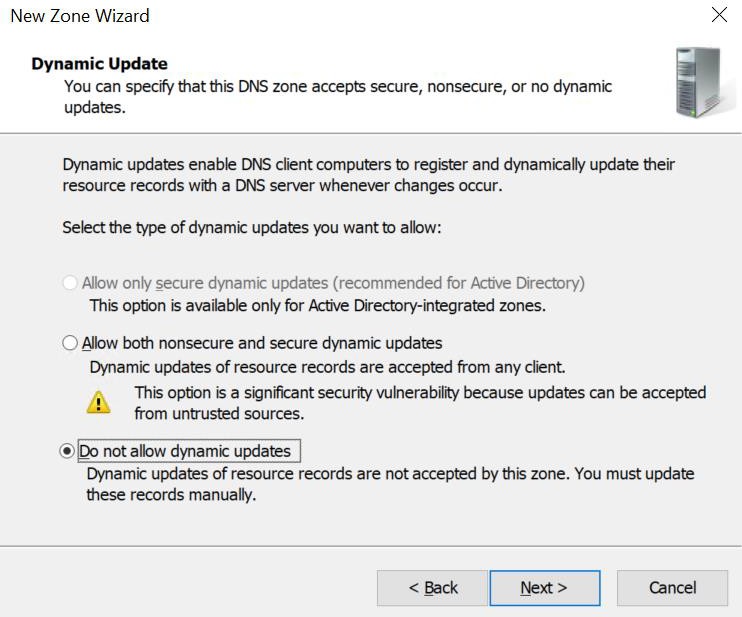
Dynamic Update
If your system is in domain, all the options will be available.
-
Check the information and click Finish.
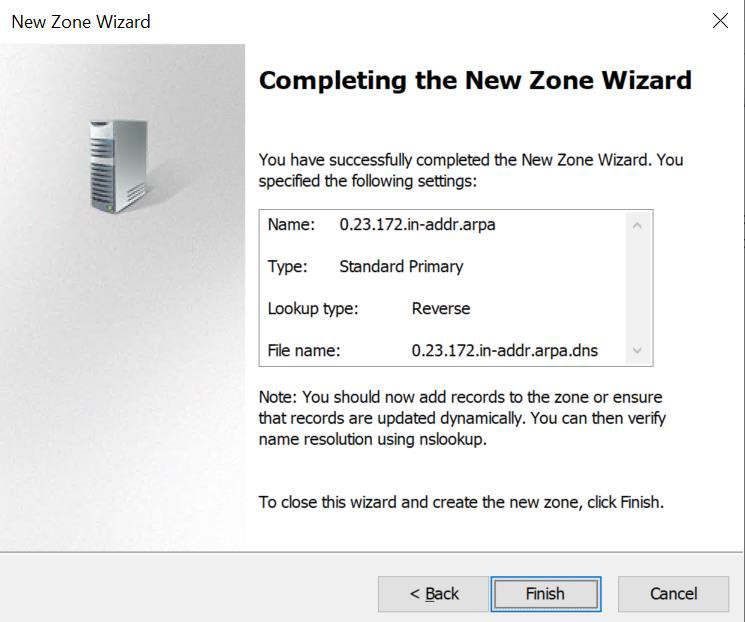
Complete New Zone Wizard