

-
Once installation is completed, click on the Configure the federation service on this server option.
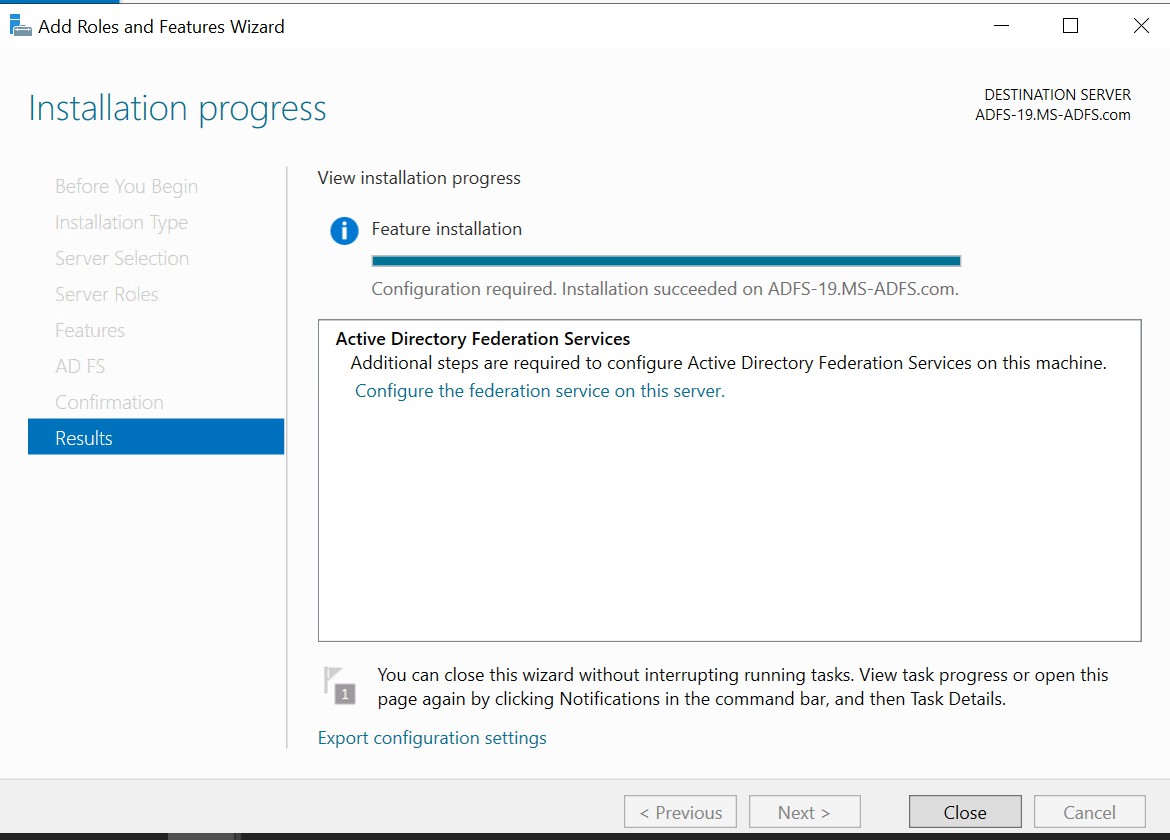
Post-deployment configuration wizard
-
Select Create the first federation server in a federation server farm radio button.
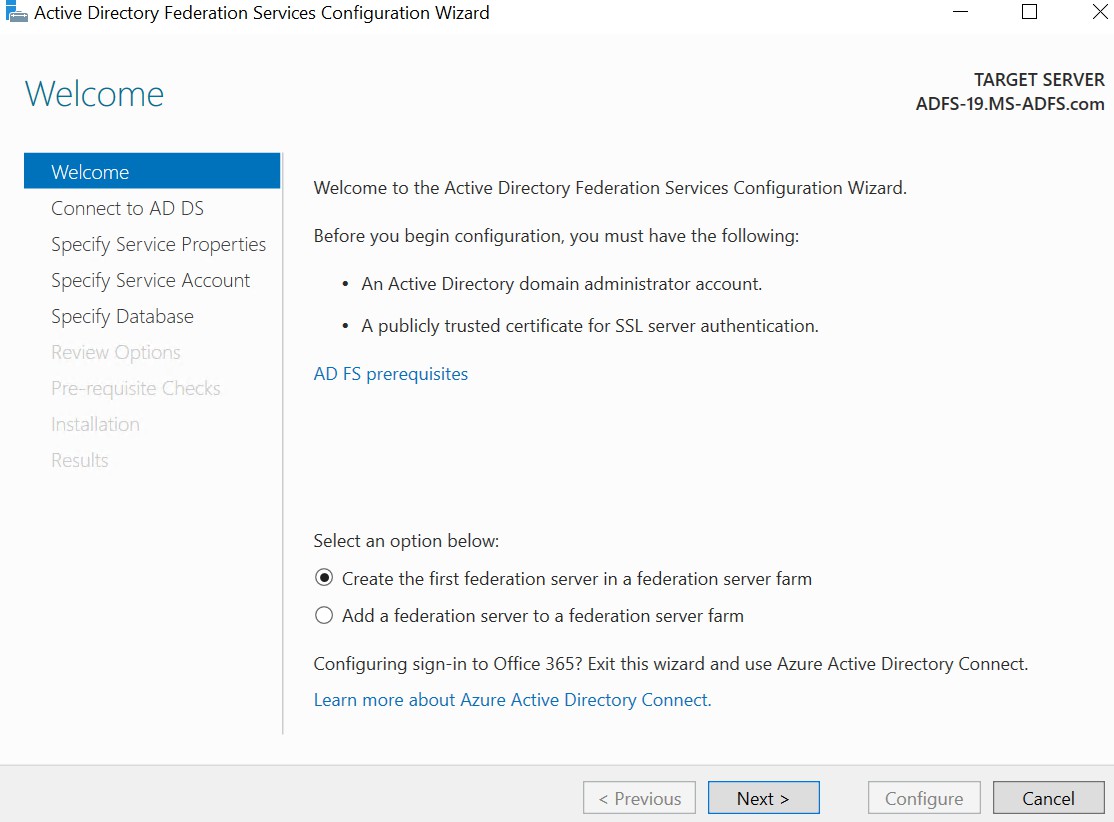
Welcome wizard
-
Select the system user with domain credentials.
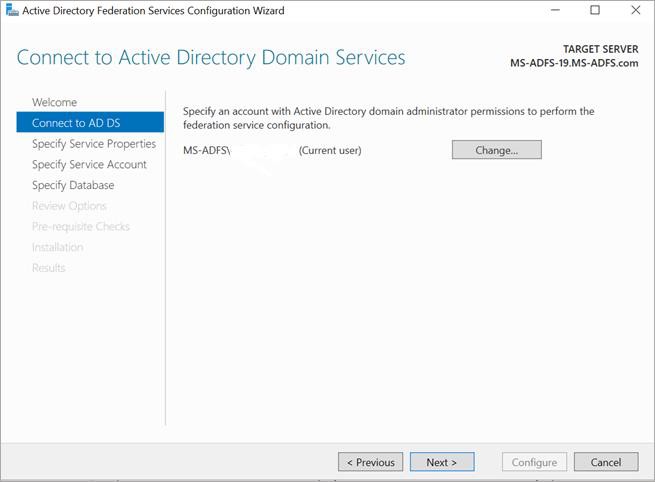
Connect to AD DS wizard
Make sure this user has full permissions on for the private keys of the certificates that you have generated.
-
Browse the SSL certificate that you have generated earlier.
-
Use the appropriate domain user account to proceed further.
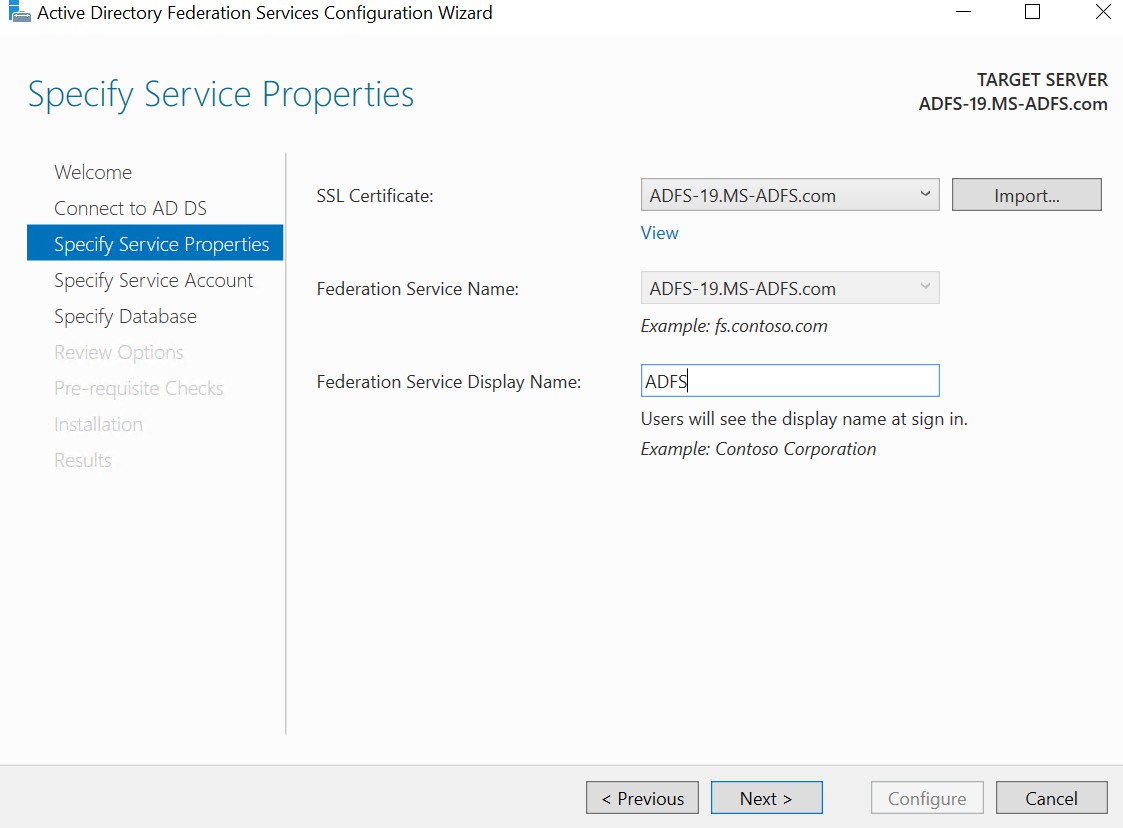
Specify Service Properties wizard
-
Click on the Next button.
-
Select Use an existing domain user account or group Managed Service Account.
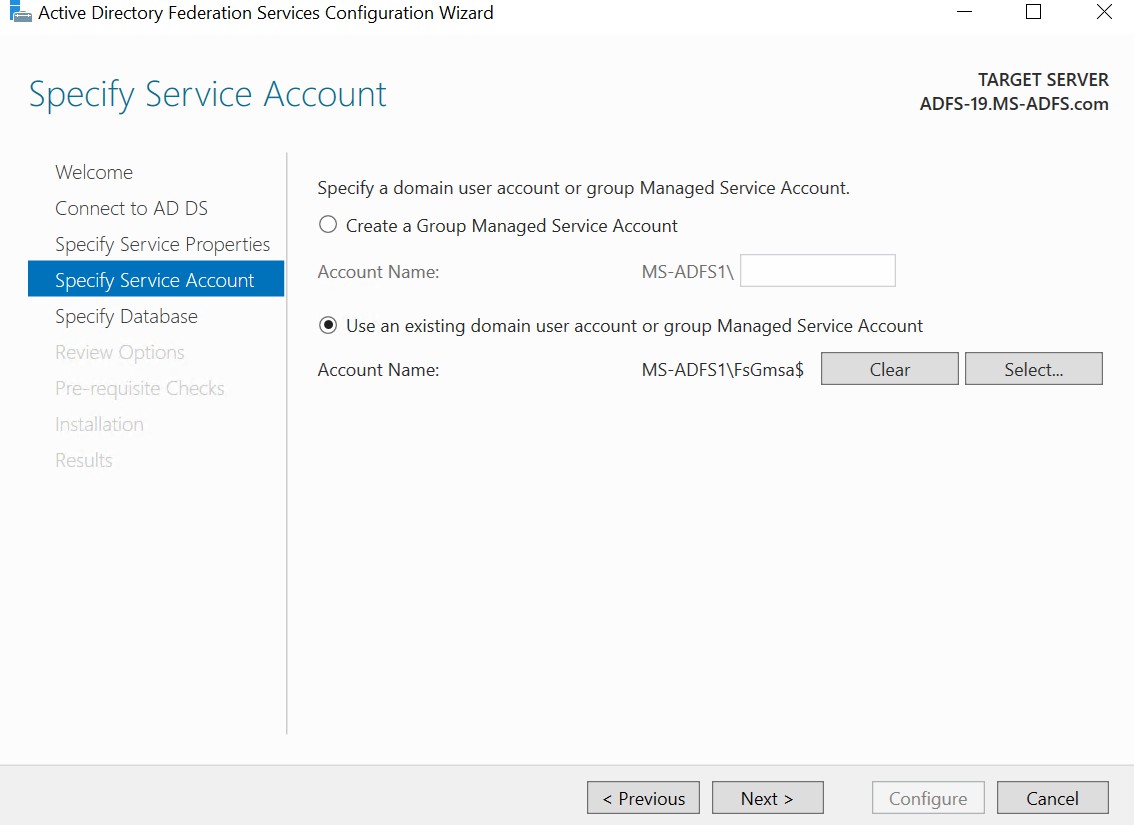
Specify Service Account wizard
-
Select the radio button Create a database on this server using Windows Internal Database. Alternatively, you can also use SQL Server if you have it installed and running.
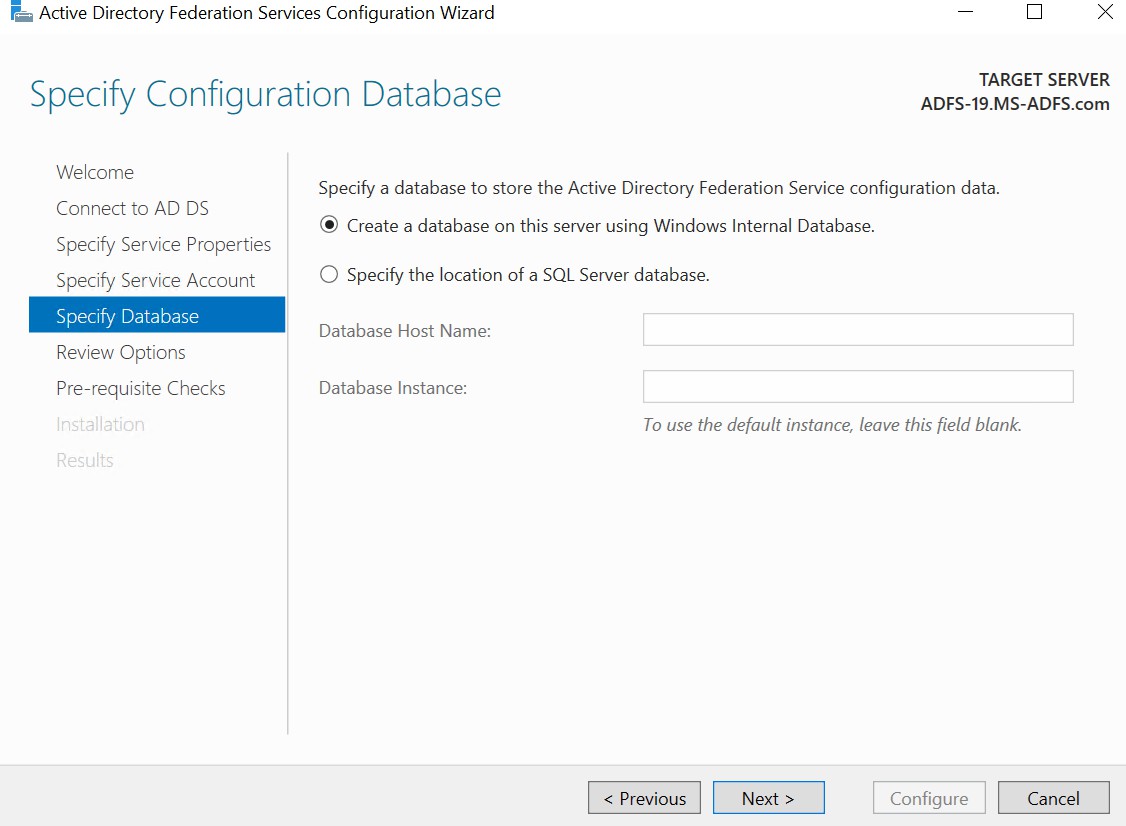
Specify Configuration Database wizard
-
Click on the Next button.
-
Review the configuration settings and click on the Next button.
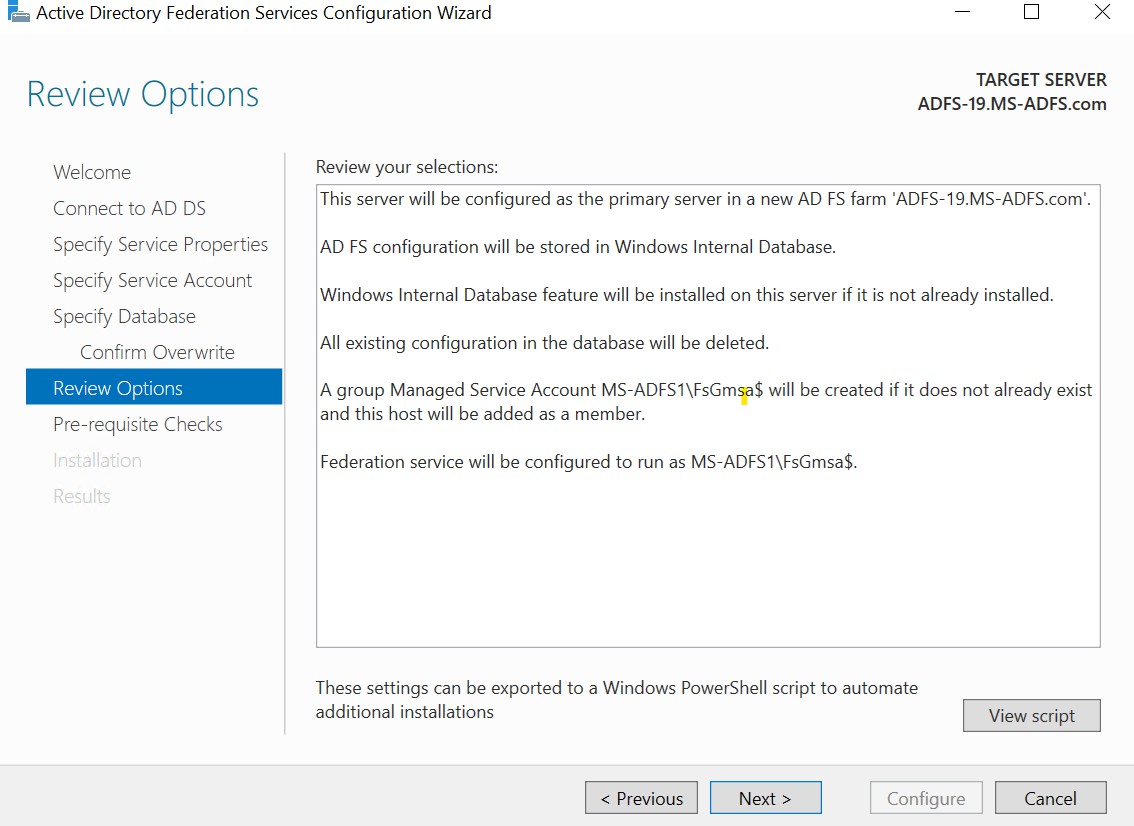
Review Options wizard
-
Once all the prerequisites are checked and passed, the below message will be shown. Then, click on the Configure button for the final configuration.
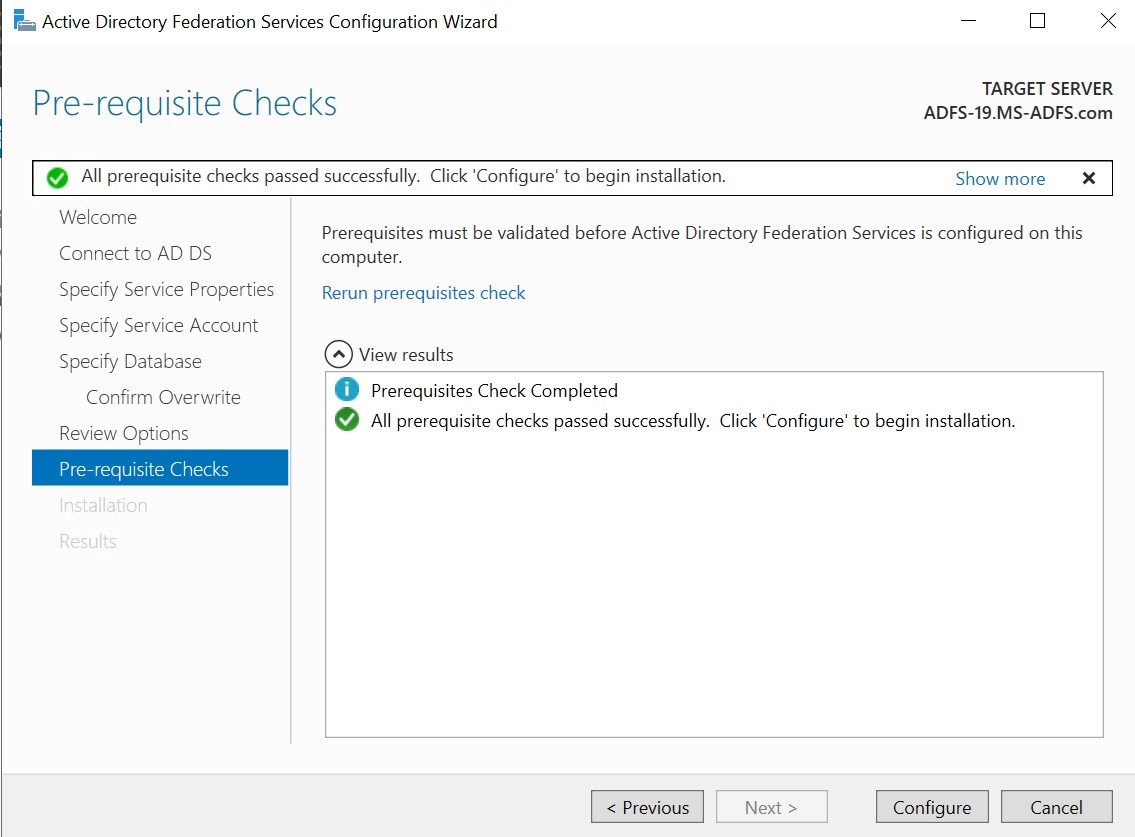
Pre-requisite Checks wizard
-
After the installation is completed, the below message will be shown. Click on Close.
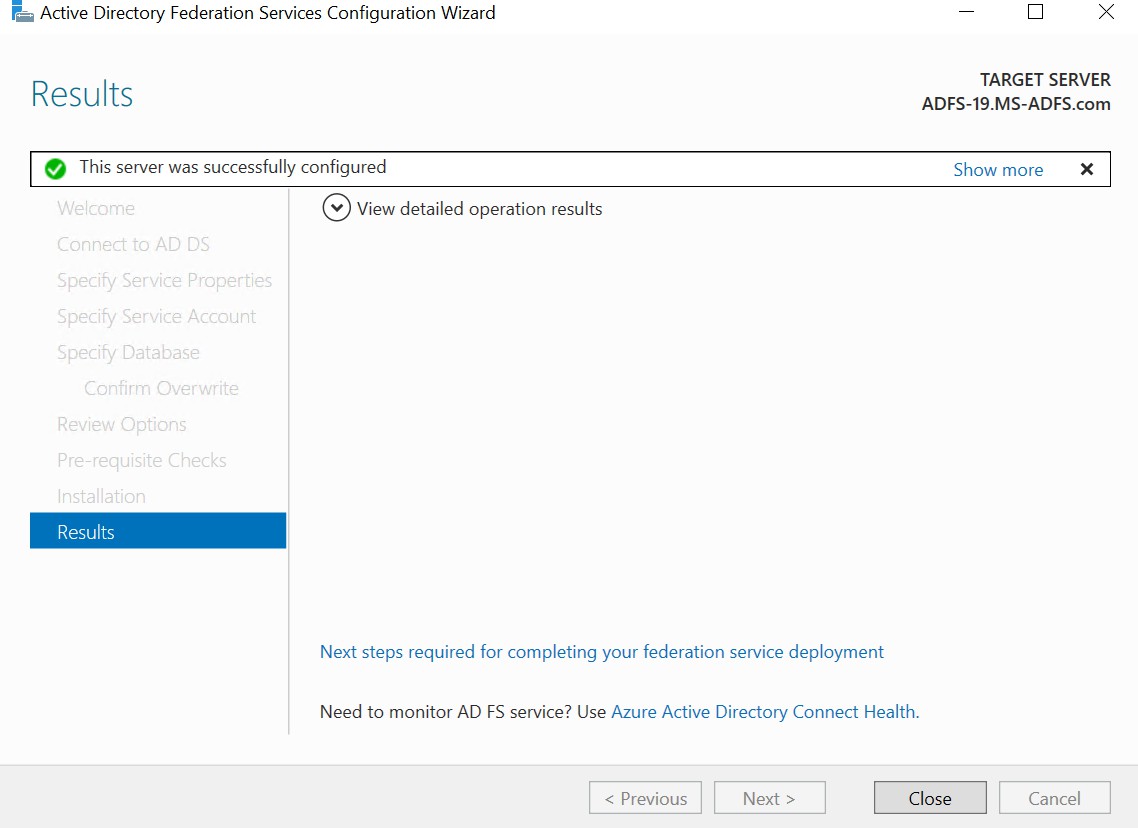
Results wizard