

You need to create a certificate template that will be used for the SSL, Token Signing, and Token Decryption certificates.
-
Log in to the Certificate Authority server as a domain administrator.
-
Select Start, click on Run then type MMC and click on OK.
-
MMC Console window populates, select File and select Add/Remove Snap-in… .
-
From the Add or Remove Snap-Ins dialog box, find and select the Certificates and Certificate Authority snap-in under the Available snap-ins section.
-
Click Add, select Computer Account, and click Next.
-
Select Local Computer and click on Finish.
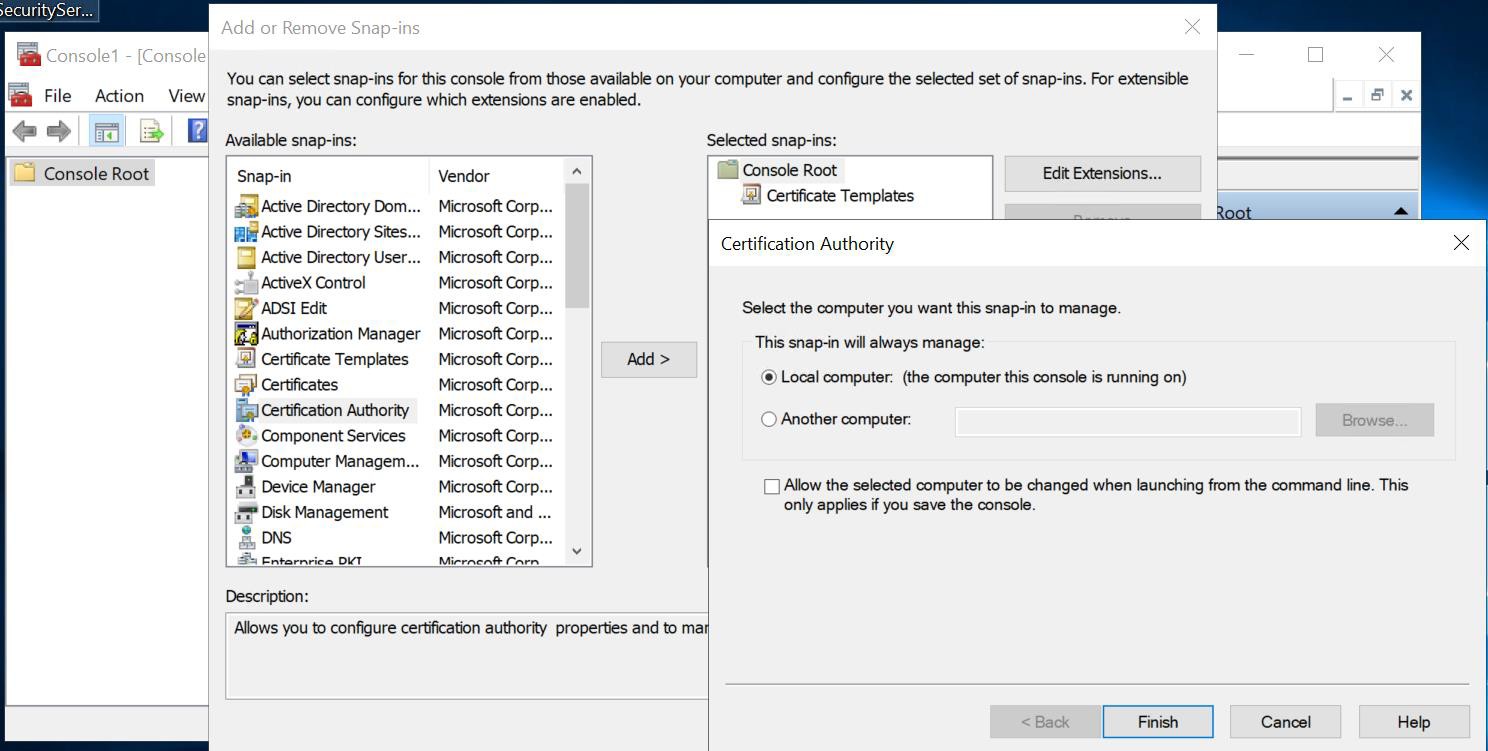
Certificate authority selection wizard
-
Open Certificate Template and duplicate the Web Server template and name it as ADFSCertificateTemplate from General tab.
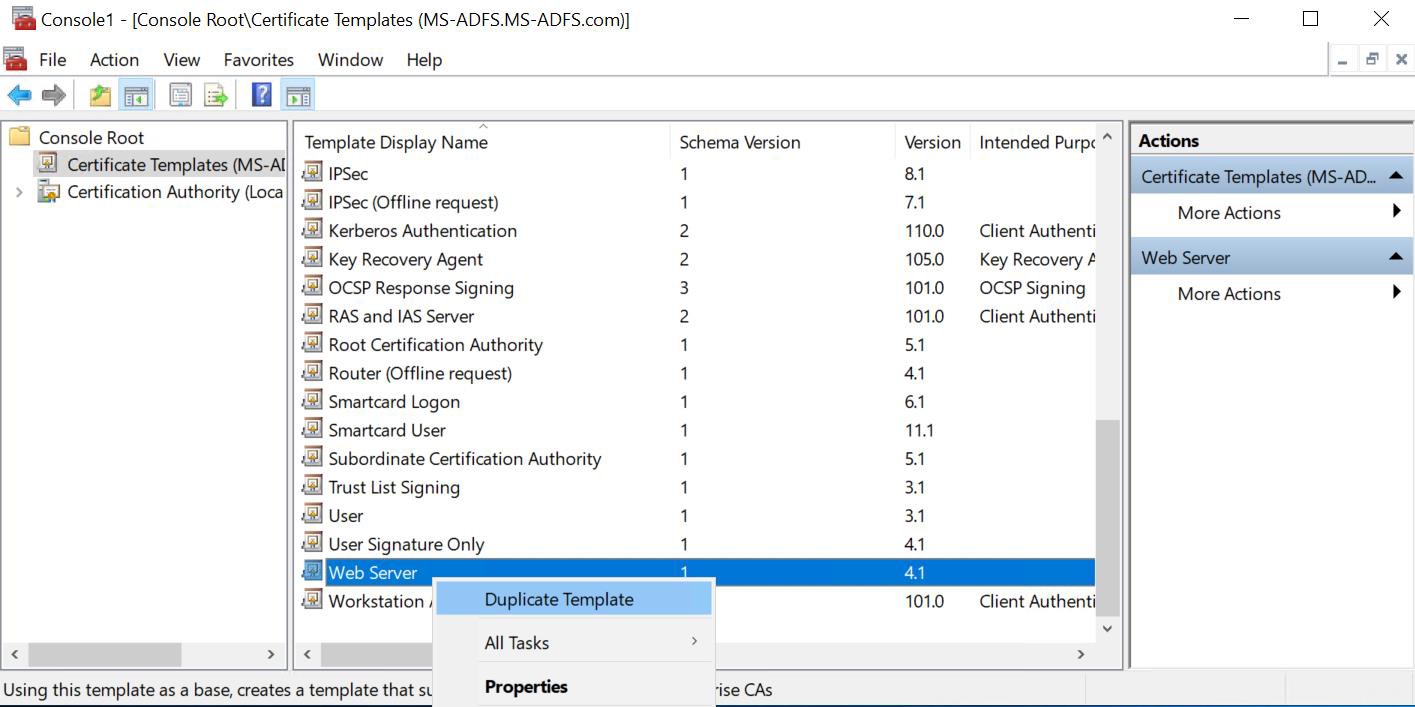
Certificate template wizard
-
Go to the Compatibility tab and select the appropriate Windows Server. For example, the Windows 2016 server as below.
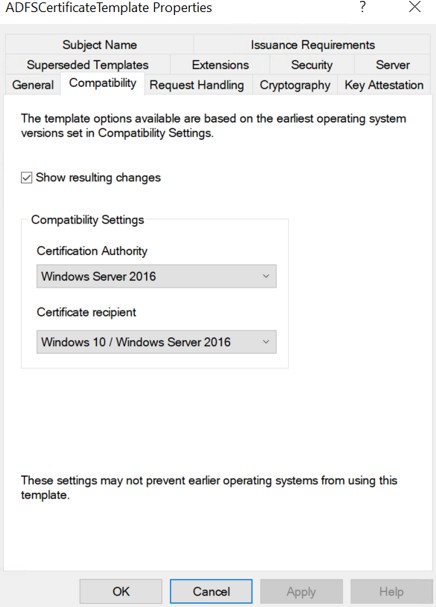
AD FS certificate template properties wizard
-
Go to the Cryptographic tab and select the Provider Category, Algorithm name and Minimum key size. Select Requests must use one of the following providers option and check Utimaco Cryptoserver Key Storage Provider, as below.
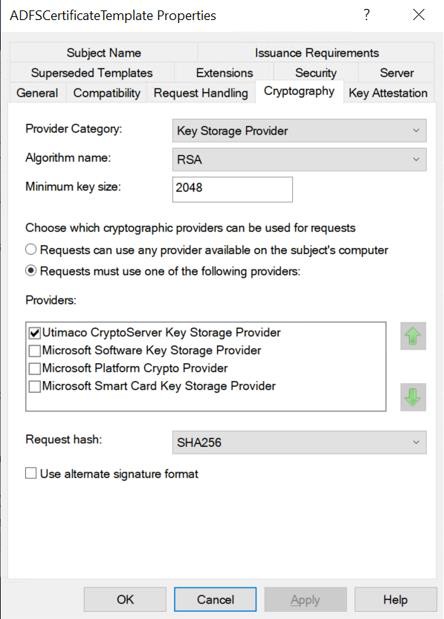
AD FS certificate template properties wizard
If you are using an existing CA, make sure to install the SecurityServer software on it. This will add Utimaco Cryptoserver Key Storage Provider to the providers list, as shown above.
If you are using Smartcard Authentication, the PIN Pad device will prompt to insert Smartcard and enter the PIN. Then, press the OK button on the PIN Pad.
-
Go to the Subject Name tab and make sure to uncheck E-mail name option, and check the User principal name (UPN) option.
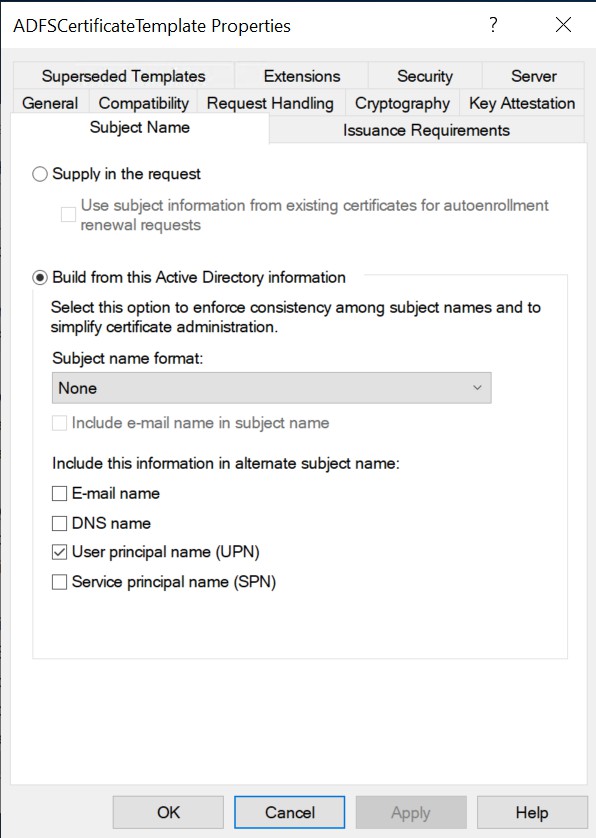
AD FS properties wizard
-
Go to the Security tab and add domain computer, NETWORK SERVICE and IIS_IUSRS in Groups and username, provide the read, enroll permissions. Then click on Apply and OK.
You can see the ADFSCertificateTemplate has been created under the certificate template.
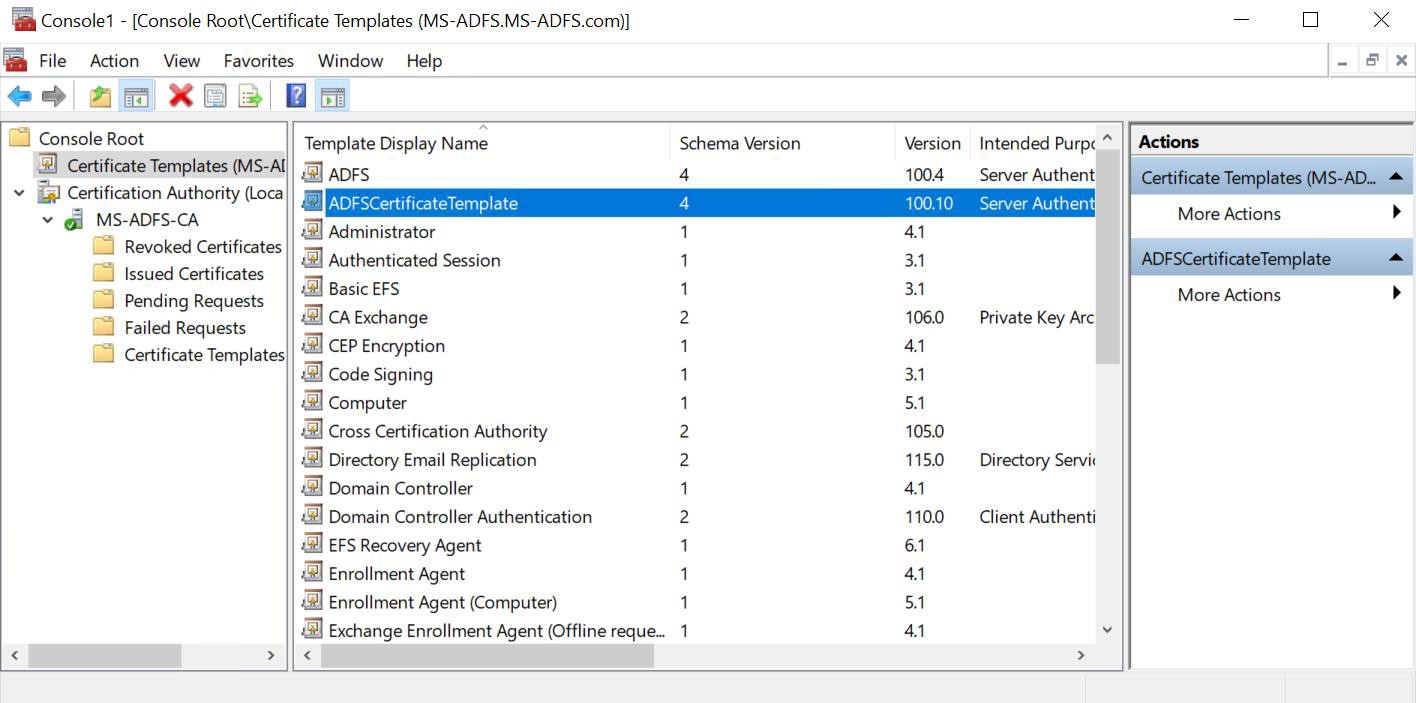
MMC console