

-
Use the following PowerShell command on your AD FS server to enable the Sing Sign on.
|
›_ PowerShell |
|---|
|
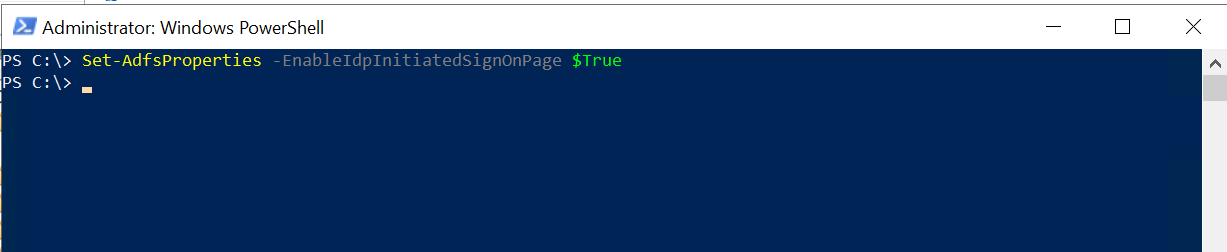
PowerShell console
-
Open a browser window.
-
In Internet Explorer, select Tools, and then select Internet Options.
-
Select Security tab.
-
Select Local intranet zone then click on Sites.
-
Select Advanced.
-
Add the above URL from Add this website to the zone option.
-
Select Add, select Close, and then select OK.
-
Select the Advanced tab. Scroll down and verify that under Security Enable Integrated Windows Authentication is checked.
-
Select OK to close the Internet Options dialog box.
-
-
Go to the browser's setting and enable to Java script in order to access the above URL.
-
In the address bar, type the federation server's host name, and then append
/adfs/ls/idpinitiatedsignon.html. For example: https://<adfs_server>/adfs/ls/idpinitiatedsignon.html. -
Once the URL is accessible, it will ask for sign in and provide the login credentials. Click Sign In.
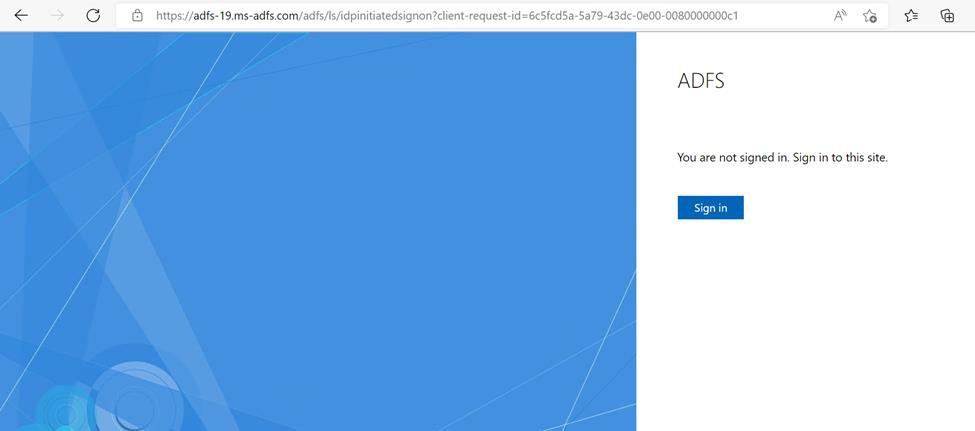
Microsoft AD FS SSO sign-in page
If you are using Smartcard Authentication, the PIN Pad device will prompt to insert the Smartcard and enter the PIN. Then, press the OK button on the PIN Pad.
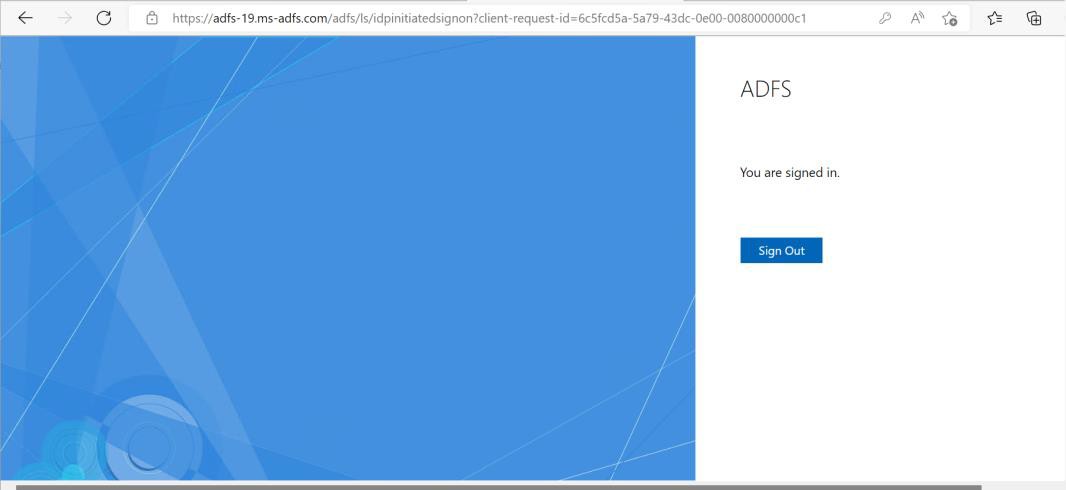
SSO login page
This completes the integration of ADFS with Utimaco HSM.