

-
In the Failover Cluster Management snap-in, right-click Role and select Configure Role
-
On the Before you Begin page, click Next
-
From the role list, select Generic Service and click Next
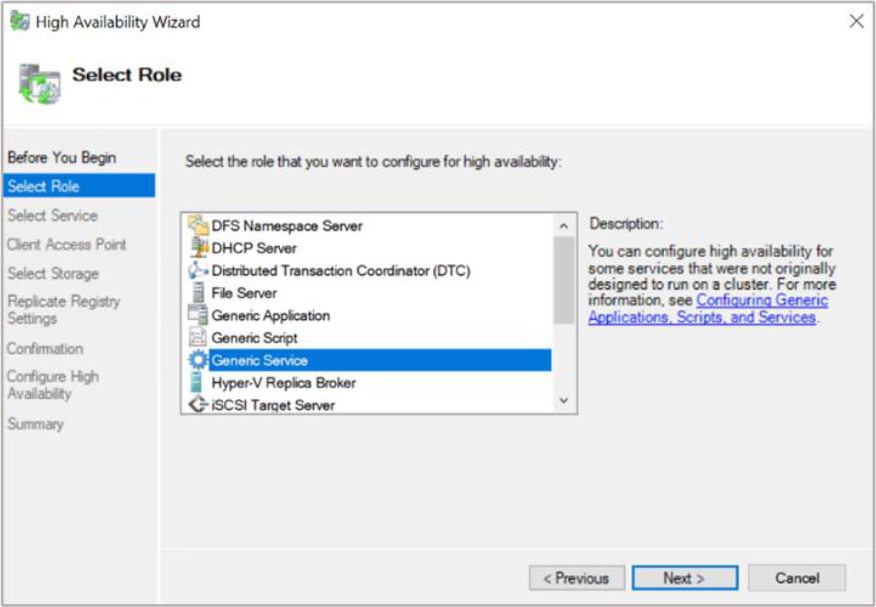
Figure 106: Select Role window
-
From the service list, select Active Directory Certificate Services and click Next
-
On the Client Access Point page, enter the role name in the Name field and click Next
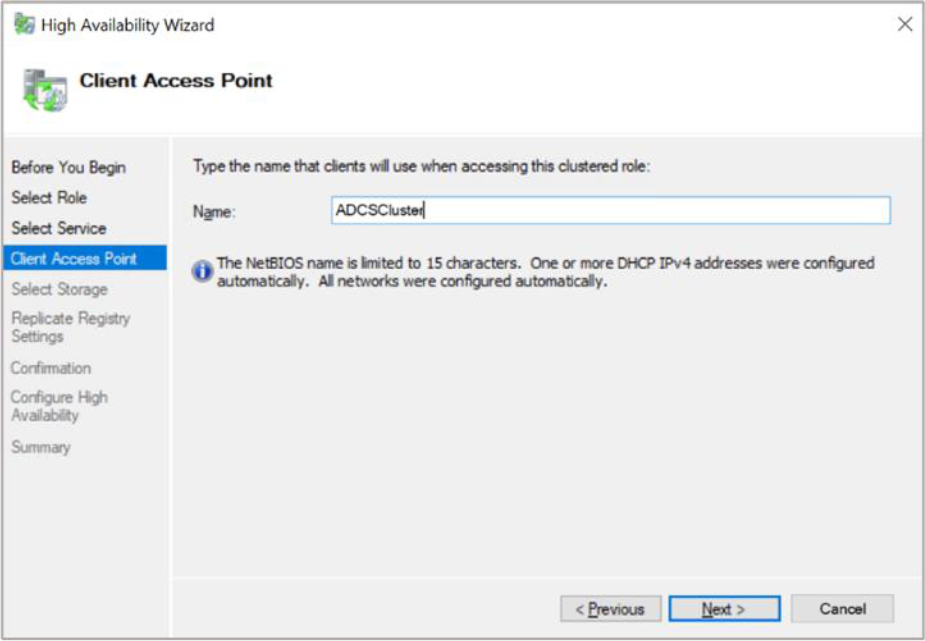
Figure 107: Client Access Point window
-
Select the disk storage that is still mounted to the node and click Next
-
Configure a shared registry hive, select the Add button, enter
SYSTEM\CurrentControlSet\Services\CertSvc and click OK
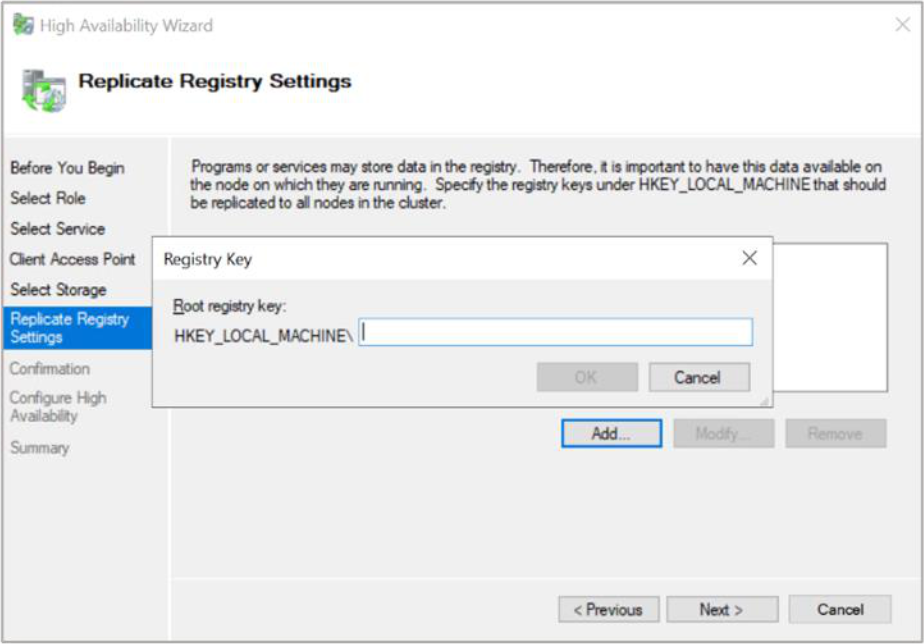
Figure 108: Replicate Registry Settings window
-
Click Next on the Confirmation page
-
Click Finish to complete the failover role configuration
-
Open the Failover Cluster Manager and verify that the newly created Roles Status is in the
Running state and Green
-
The AD CS Failover got configured successfully. At this stage, you can move the
certification authority between all nodes.