

-
Join a machine to the Domain and Log in as a user with Administrative privileges
-
The steps to install the Microsoft Active Directory Certificate Services are same as the Installing Microsoft Active Directory Certificate Services with Windows Enterprise section. After Microsoft ADCS is successfully installed, continue with the below steps
-
Open the command prompt and run certsrv.msc and then click OK
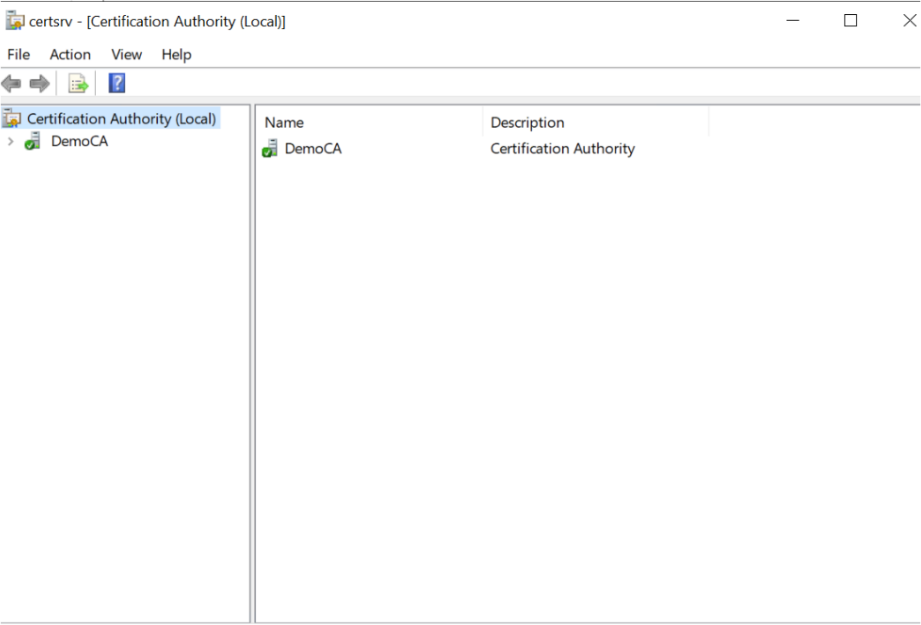
Figure 88: Certificate Authority window
-
Select the Certificate Authority node in the left pane
-
In the Action menu, select All Tasks and then select Backup CA
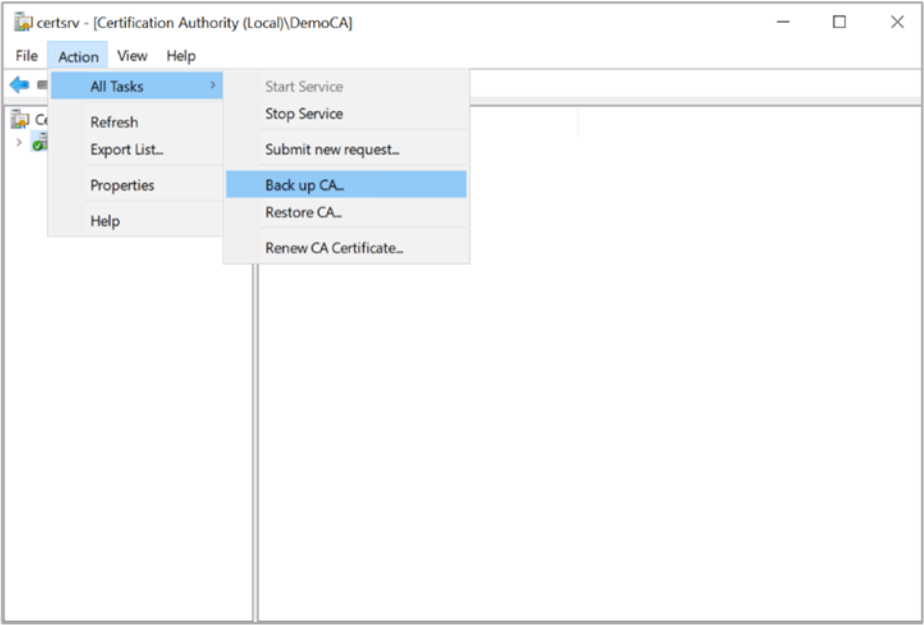
Figure 89: Certificate Authority window
If you are using Smartcard Authentication, the prompt will go on the PIN Pad device to insert Smartcard and enter the pin. Then press OK button on the PIN Pad.
-
On the Welcome page of the CA backup wizard, click Next
-
Select Private key and CA certificate and provide a directory name where you will temporarily store the CA certificate and optionally the key. Click Next
-
Provide a password to protect the CA key and click Next
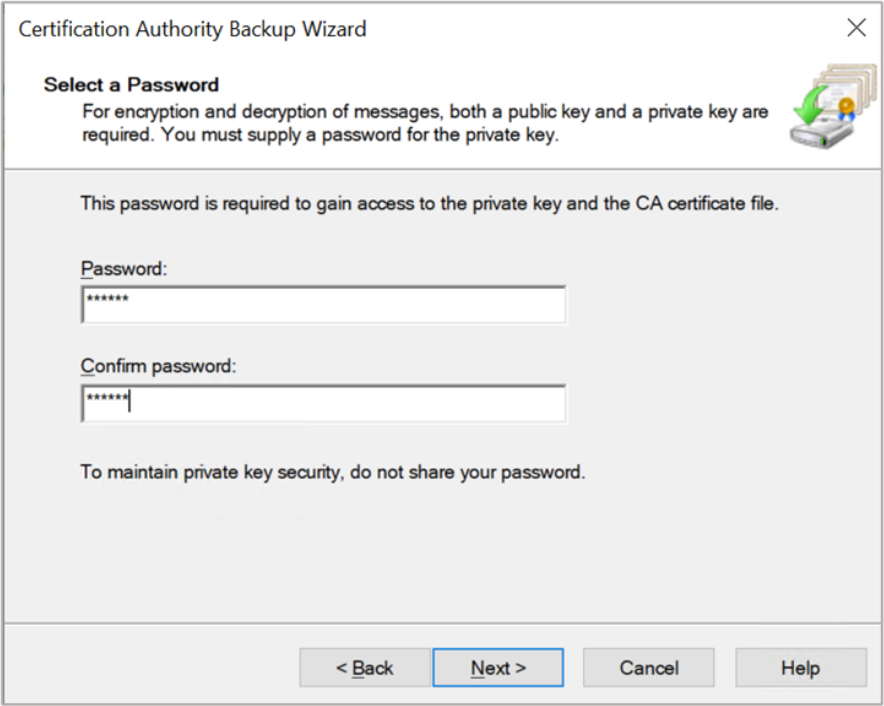
Figure 90: Certification Authority Backup window
-
Click Finish
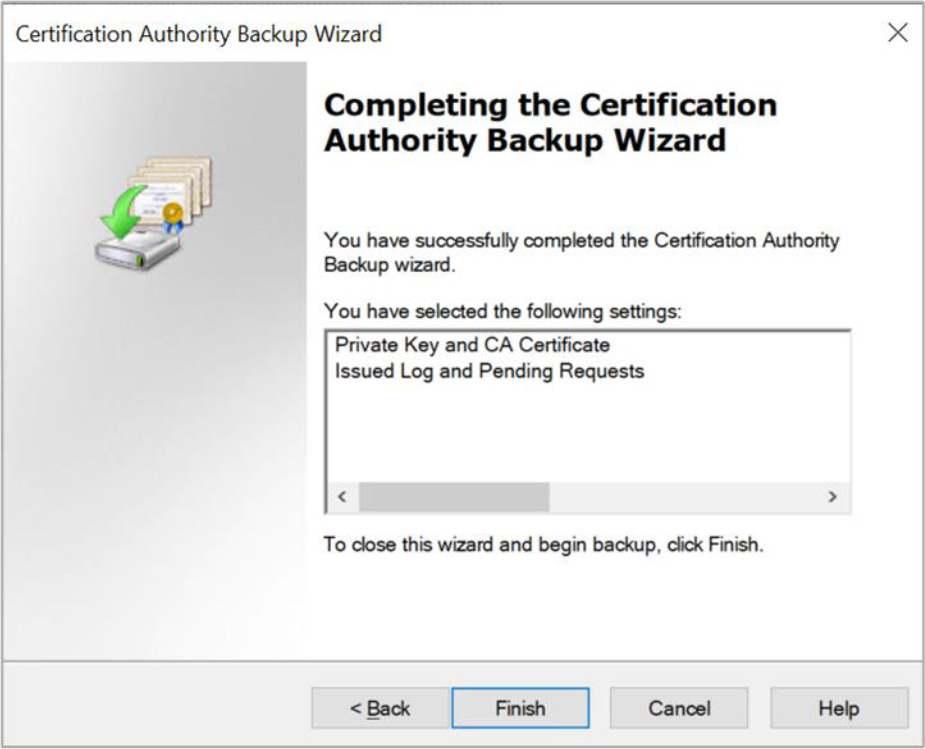
Figure 91: Certification Authority Backup window
You will receive a warning message that the private key cannot be exported. This is expected behavior because the private key will never leave the Utimaco HSM
-
Click OK to continue
-
Export the CA Certificate
|
›_ Console |
|---|
|
-
Generate MBK and backup of the databases from first node using CryptoServer Administrator Tool (CAT)
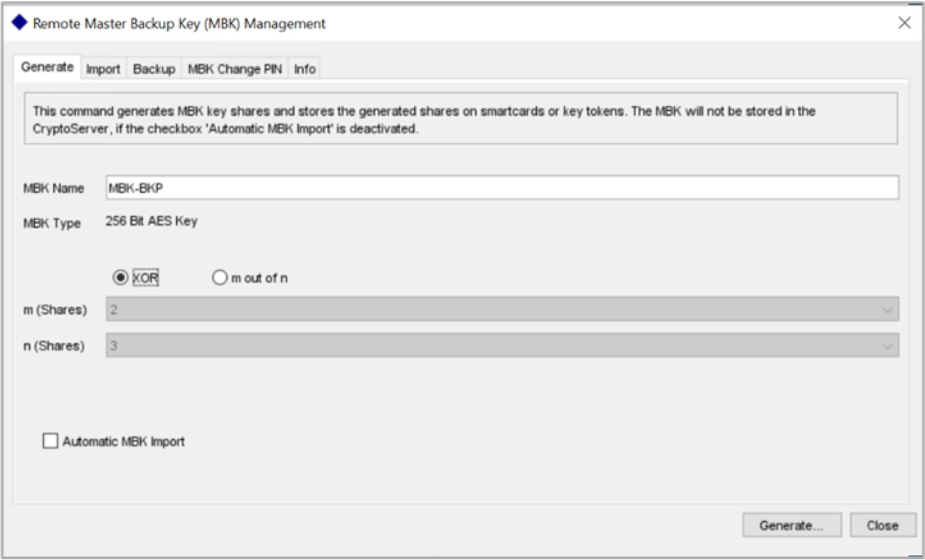
Figure 92: Remote master Backup Key Management window
-
Stop the certsvc service. Run:
|
›_ Console |
|---|
|