

-
Log in to cluster node as a user with Administrative privileges where disk is attached
-
Open Server Manager, Select Tools and select Failover Cluster Manager
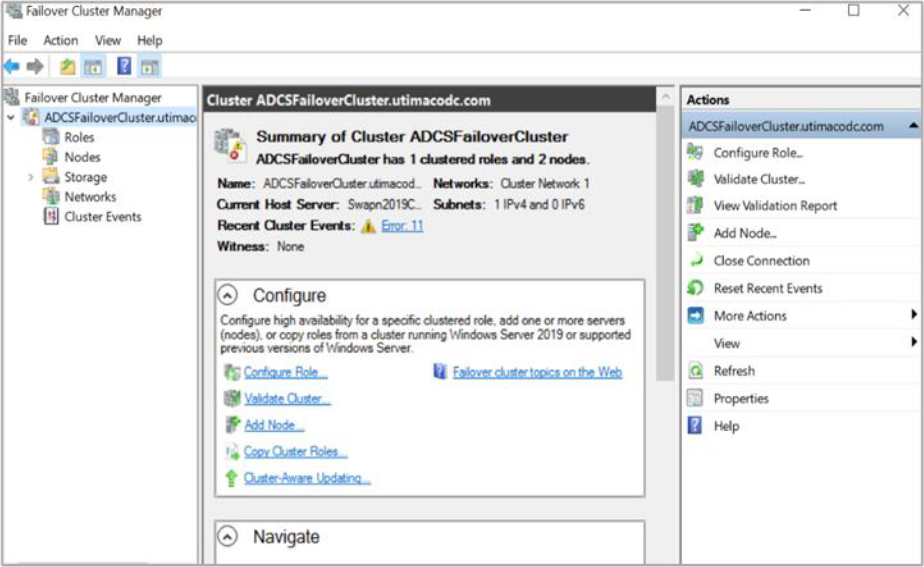
Figure 102: Failover Cluster Manager window
-
From the Actions menu, click Create a Cluster
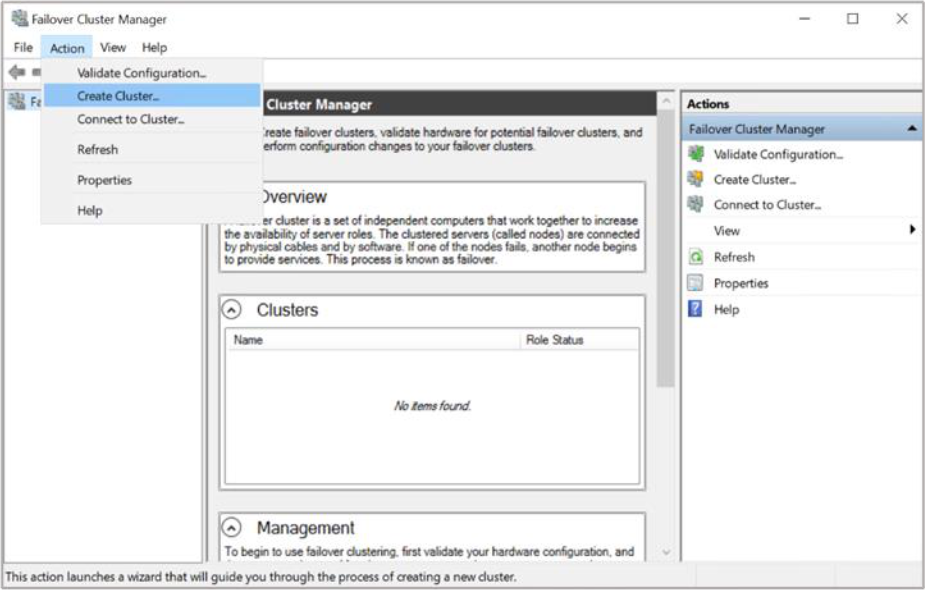
Figure 103: Failover Cluster Manager window
-
On the Before You Begin page, click Next
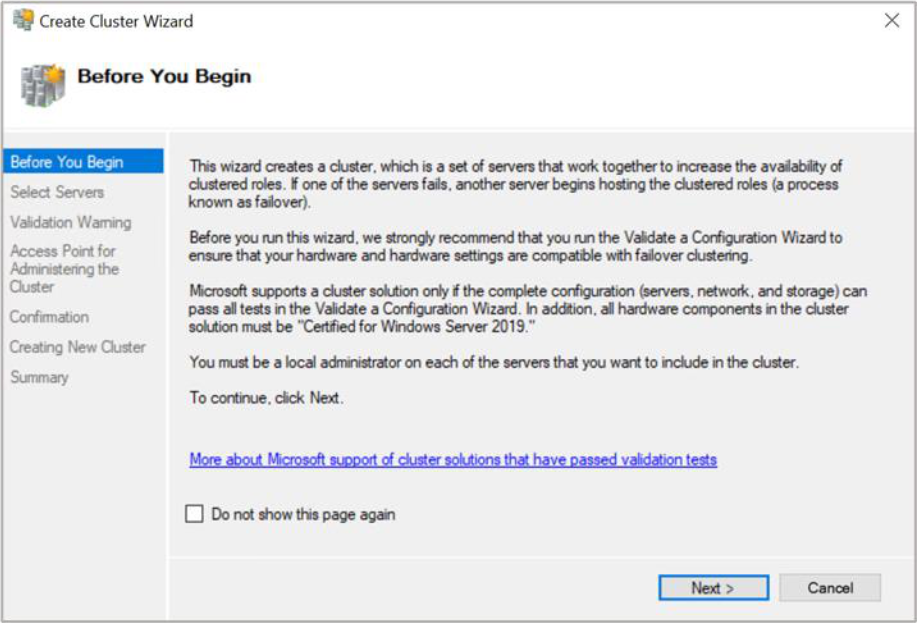
Figure 104: Before You Begin window
-
Enter the first cluster node name in the Enter Server Name field and click Add
-
Enter the second cluster node name in the Enter Server Name field and click Add
-
Click Next
-
Enter the Cluster Name and click Next until you reach the Summary page
-
To perform the validation tests, chose Yes and click Next two times
-
Keep the default option to Run all tests and click Next two times
-
Verify the test report and click Finish
-
Provide the cluster name and click Next until you reach the Summary page
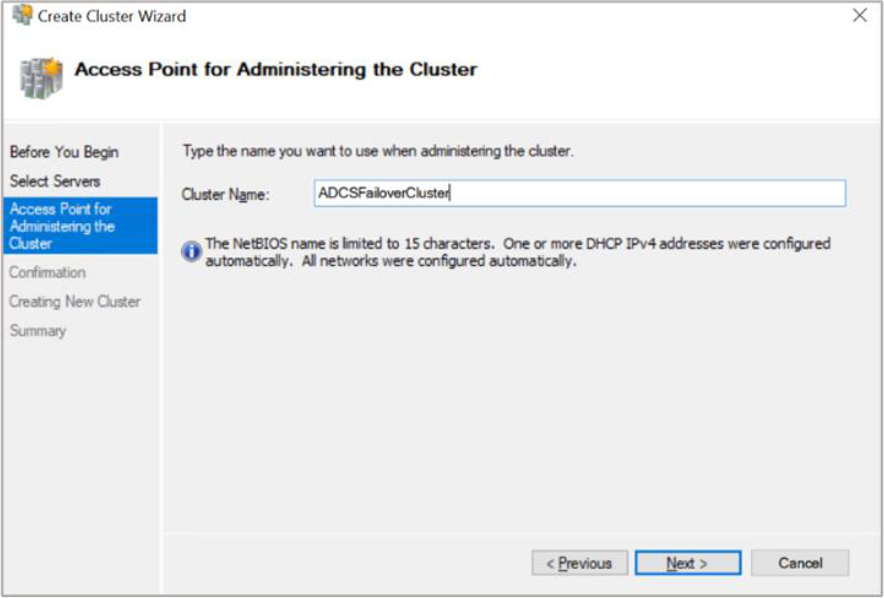
Figure 105: Access Point for Administering the Cluster window
-
Verify the cluster got configured successfully. Check the status of both nodes, disk, and network. It should be in green